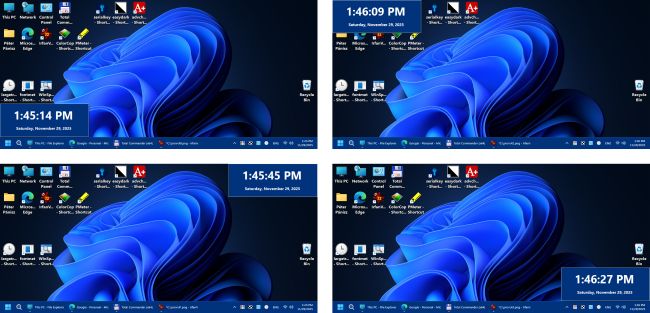
The Large System Tray Clock is designed to replace the original clock in the Windows 10/11 system tray to improve visibility. In addition, the software includes several accessibility features related to clock visibility.
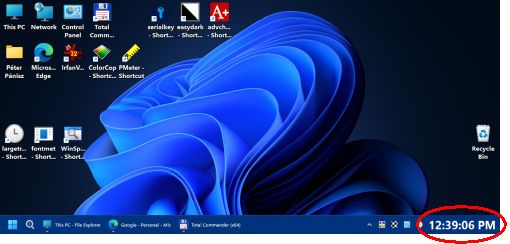
Microsoft provides very few customization options for the appearance of the Windows 10/11 system tray clock. There are also no accessibility settings available for customizing its appearance.
The idea for the Large System Tray Clock came from a few visually impaired users who requested a highly visible clock that could replace the default system tray clock.
Main Features
- The Large System Tray Clock appears in the notification area of the taskbar. This ensures that the large, easy-to-read clock is always available. In full-screen mode (e.g., YouTube videos), the clock remains hidden together with the taskbar.
- All taskbar functions remain available. When necessary, the clock hides automatically and reappears after a user-defined delay.
- Besides taskbar mode, the software can display the clock in the screen corners or in full-screen mode.
- The Large System Tray Clock is completely free to use and contains no restrictions. It does not collect data, display advertisements, or perform any harmful background operations.
- The software consists of a single executable file (largetrayclock.exe) and does not require installation.
- The software supports Windows 10/11 operating systems.
- If you find the software useful, please consider supporting its development by purchasing a software key or using PayPal.
Clock Display Components
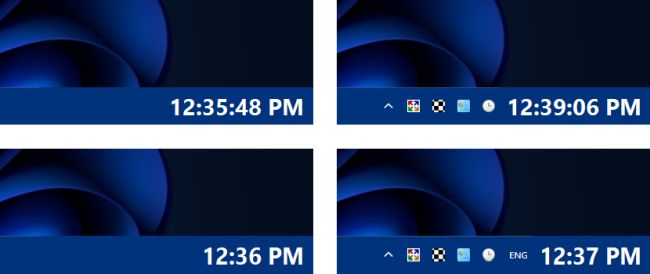
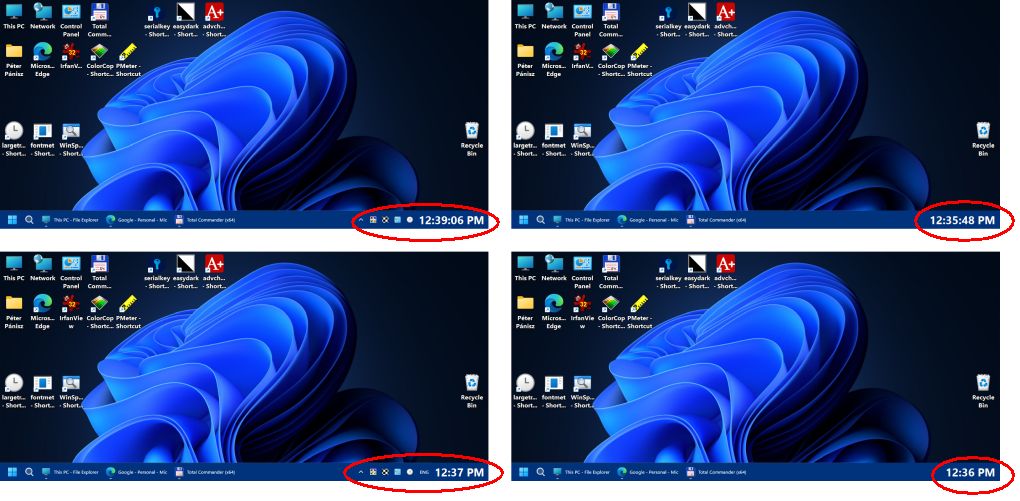
- System Tray: The clock displayed in the taskbar notification area. You can customize the font, font size, and horizontal position. By default, the clock uses the full width of the notification area. When the mouse cursor is placed above the taskbar, the clock hides for a short (configurable) time, making the entire notification area accessible.
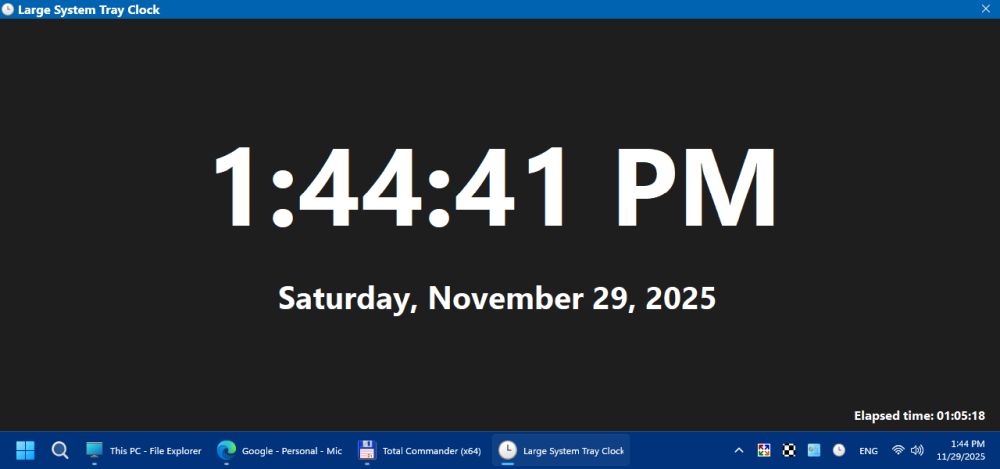
- Full Screen: After a configurable period of inactivity, the clock appears in full-screen mode. Full-screen mode can be disabled or adjusted.
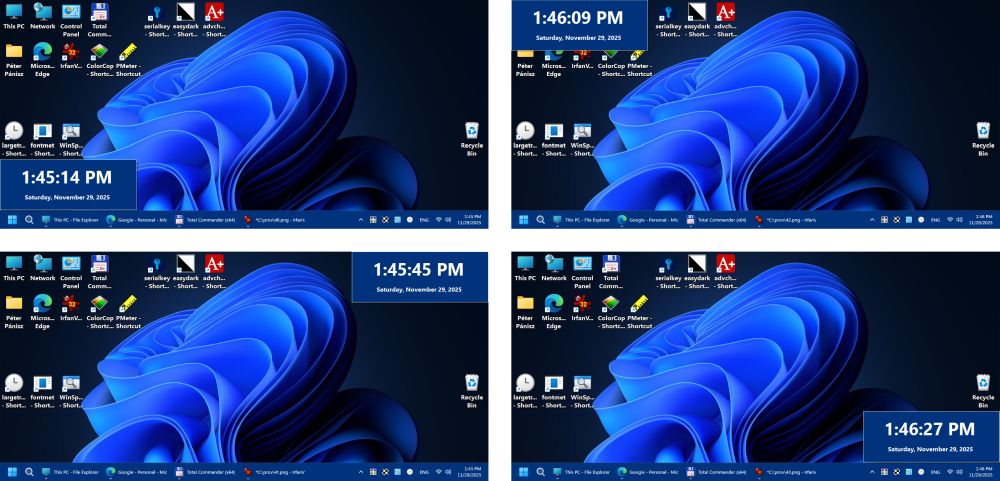
- Hot Corners: By holding the Control key and moving the mouse cursor to the current screen corner, a window containing the clock becomes visible.
Default Operation
When launched for the first time, the software operates with default settings. The clock appears in the taskbar notification area using the default fonts and occupies the full width of the notification area. When the mouse cursor moves over the taskbar, the clock hides and the original notification area becomes fully accessible. When the cursor leaves the taskbar, the clock reappears after a short delay.
Recommended Settings
- If necessary, select a different font using the Settings panel. You can also adjust font size while holding the Control key. The horizontal position can be modified as well.
- Choose the desired time display format in the Time Type section. Two formats are available: hour : minute : second, or hour : minute.
- Configure the Reduced Size mode. In this case, the clock occupies only part of the notification area, allowing the notification icons to remain visible. A slider allows you to adjust the size of the clock.
- Enable autostart so the clock launches automatically every time the computer is turned on.
Known Issues
- It is recommended to use the “Taskbar” option for the “Hide Type” setting. Otherwise, an occasional distracting flicker may occur. This does not affect system performance.
- If the background color of the clock appears incorrect, you can correct it using the Refresh Colors option in the system icon menu.
- In multi-monitor systems, the clock and full-screen mode appear on the primary monitor.
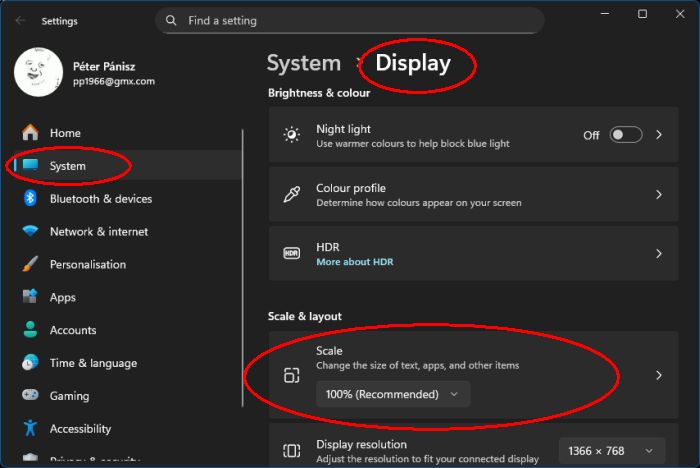
- All functions of the software work correctly when Windows Settings → Display → Scale and layout is set to 100%.
- Microsoft has significantly restricted the taskbar and notification area from a software development perspective in Windows 10/11. Due to these limitations, it is sometimes necessary to hide the Large System Tray Clock. Here you can set the desired operating mode: Settings - Hide Type
- Not all features work properly when using virtual desktops.
- If you want vertical taskbar mode in Windows 11, read this article.