The software can display virtual LEDs in several ways. Users can choose from the following main display modes:
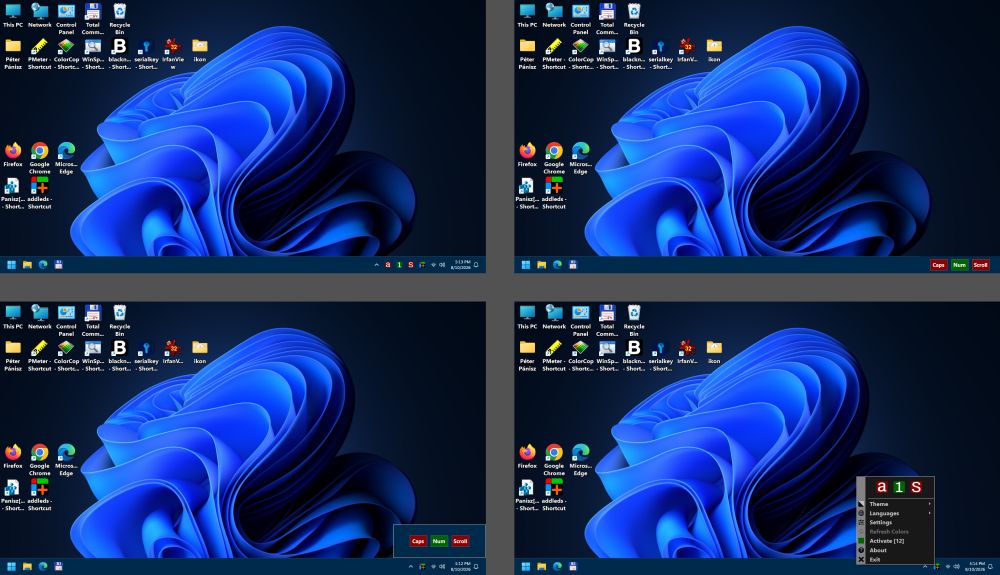
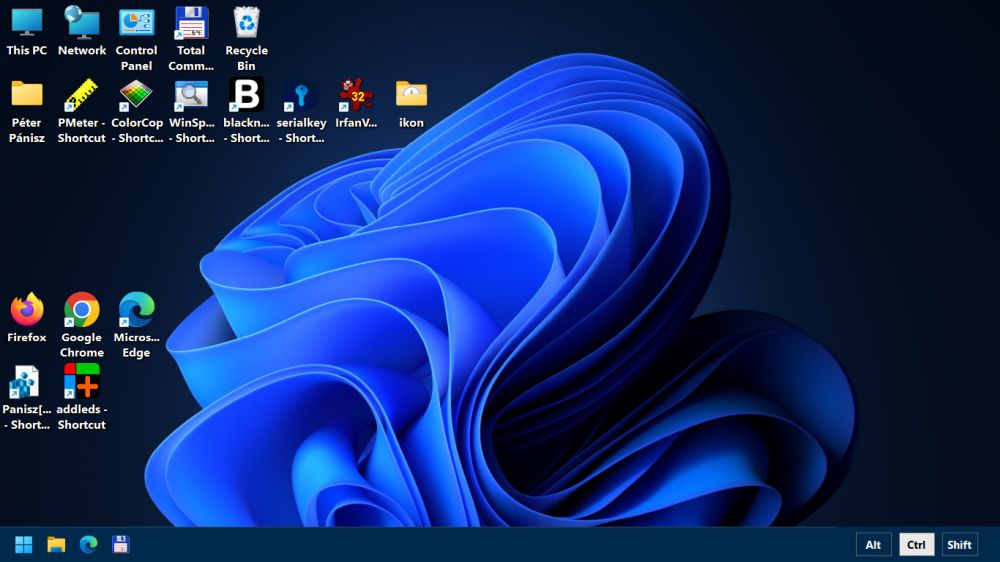
- Taskbar mode: The LEDs automatically appear in the system tray (notification area) when a status change occurs. While displayed, the original content of the system tray is temporarily replaced. The LEDs disappear automatically after a configurable time, restoring the system tray display. You can also manually dismiss the LEDs with a right-click or a left double-click.
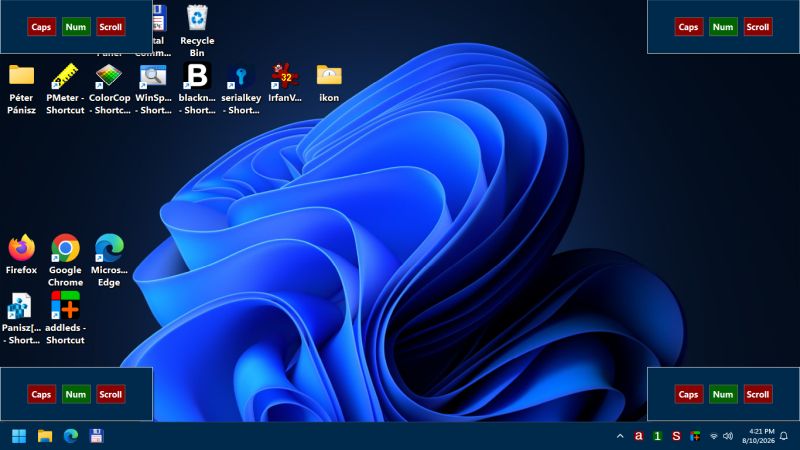
- Desktop mode: The LEDs appear automatically above, below, or next to the system tray (depending on the taskbar position) upon a status change, and automatically disappear after a configurable time.
- Classic mode: The display mode used in previous versions of addLEDs. It shows state indicators in the system tray using traditional icons. Users can group the displayed icons as desired using native Windows functionality.
- Menu mode: The LEDs appear directly in the context menu of the software's tray icon.
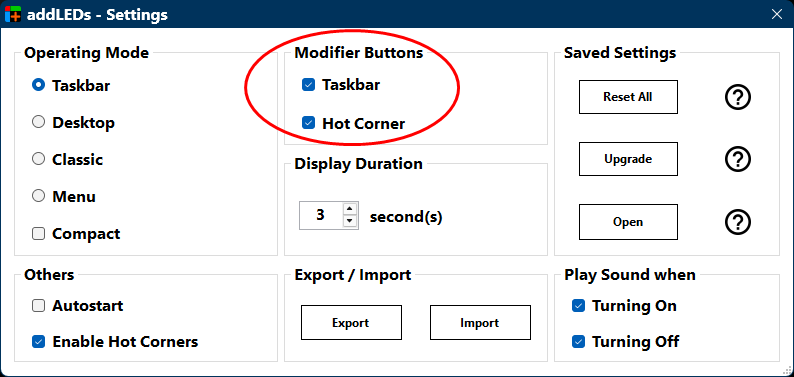
The following additional display modes can be combined with the main display modes above:
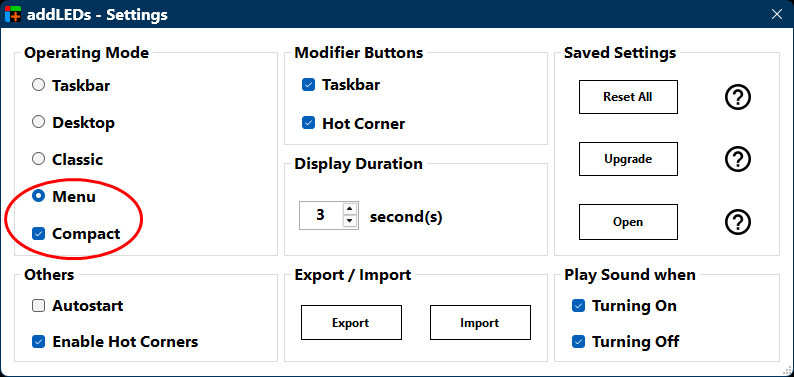
- Compact mode: Upon a status change, the tray icon displays the current icon in a color corresponding to its state for a configurable time. After this period, the tray icon reverts to the default icon. Compact mode is especially useful when Menu mode is selected.
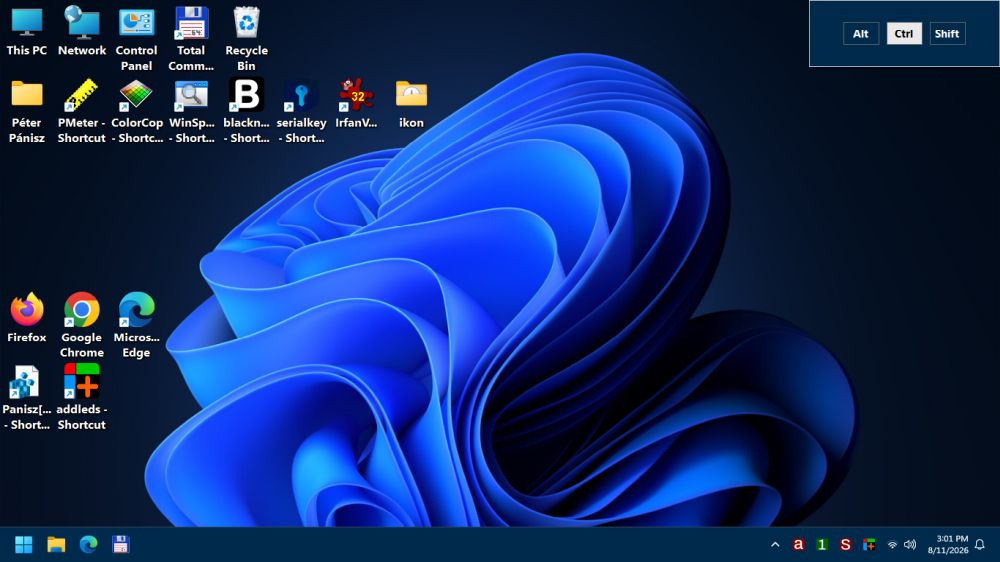
- Hot Corners: Holding down the Control key and moving the mouse cursor to one of the screen corners displays the LEDs. Closing the displayed LED panel is manual, meaning this display mode is not subject to timed auto-hide.
- Modifier Buttons: As an additional feature, monitoring Alt, Control, and Shift key presses is also available in Taskbar and Hot Corners modes.
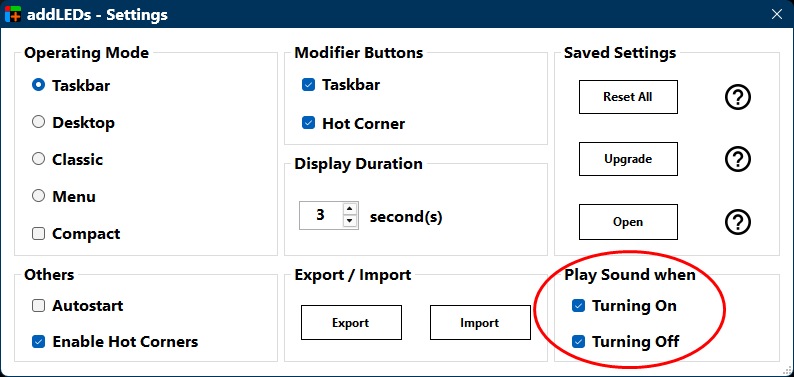
- Play Sound: Audio notifications are available when LED status changes occur. Sound effects for the turned-on and turned-off states can be enabled or disabled separately.
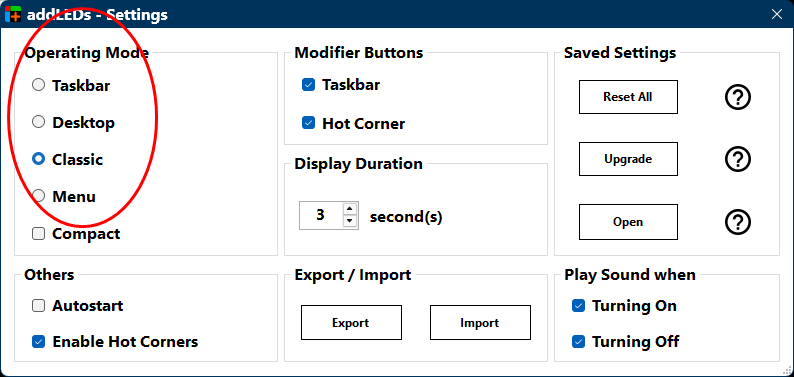
When launched for the first time, addLEDs starts in the default Classic mode. All features and additional display modes are accessible in Classic mode as well. After getting familiar with the basics, it is recommended to try the other three display modes:
- Taskbar mode occupies space in the system tray only temporarily during LED status changes. It remains clearly visible even at high screen resolutions due to the large icons.
- Desktop mode provides a display similar to Taskbar mode, but without occupying the system tray.
- Menu mode displays the LEDs in the context menu of the software's tray icon. Enabling Compact mode is recommended when using Menu mode.
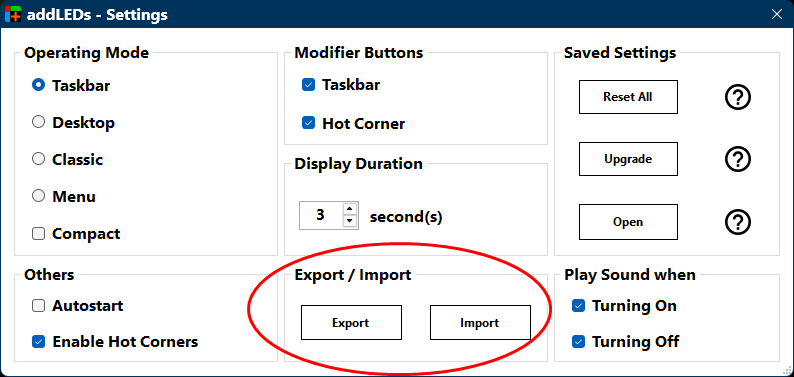
The Export/Import feature allows you to easily share software settings with other computers. It is also advisable to export your settings before reinstalling Windows and store them in a safe location.
In most cases, regardless of keyboard layout, the keys and LEDs managed by addLEDs use their original English names. Consequently, these names appear in English across all language versions of the software.
The list below summarizes these names (they may also appear in abbreviated form in the user interface):
- Caps Lock – uppercase typing on/off (Caps or C)
- Num Lock – numeric keypad on/off (Num or N)
- Scroll Lock – scroll lock function, not used by all applications (Scroll or S)
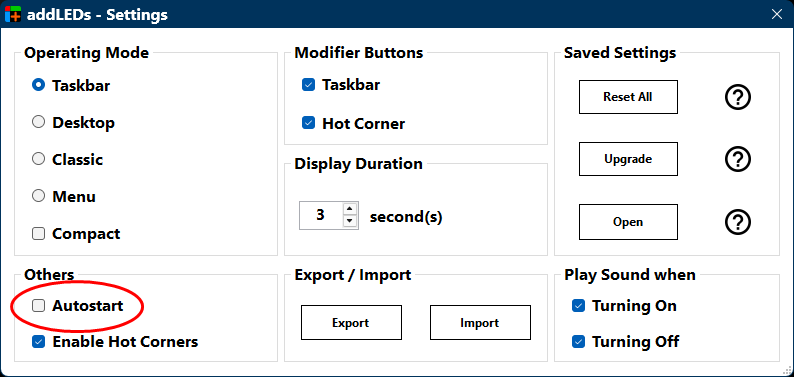
If you decide not to use the software in the future, disable the autostart feature and delete the addleds.exe file.